Core Location in Swift
Track location in the background with Core Location, balance accuracy against battery, export GPX and fetch the points with Core Data in SwiftUI.
4 min readUpdated
Core Location is Apple’s framework for the device’s position. A tracking app, such as one that records a run or a delivery route, needs it to keep delivering locations while the app is in the background, without draining the battery.
This note covers the CLLocationManager settings for background tracking, automatic pausing and accuracy, the GPX format for exporting tracks, and two Core Data topics that come up when you store the points in a SwiftUI app: reusable @FetchRequest definitions and the “valid NSEntityDescription” error.
Track location in the background
To keep receiving locations while the app is in the background, first add location to the UIBackgroundModes key in the app’s Info.plist. In Xcode, this is the Location updates option of the Background Modes capability.
Then allow background updates on the location manager:
locationManager.allowsBackgroundLocationUpdates = trueBalance battery use and background tracking
pausesLocationUpdatesAutomatically lets iOS pause location updates when it decides the app does not need them, for example when the user has not moved for a while:
locationManager.pausesLocationUpdatesAutomatically = trueHow iOS decides that the user is “not moving, so no new location is necessary” depends on the manager’s activityType. The CLActivityType values are:
.automotiveNavigation: navigation by car..fitness: walking, running or cycling..otherNavigation: other vehicles, such as boats and trains..airborne: flights (iOS 12 and later)..other: unknown type of movement.
locationManager.activityType = .fitnessNote: Once updates are paused automatically, they resume only when the app returns to the foreground. If your app must keep logging the location in the background, set pausesLocationUpdatesAutomatically to false. In that case you do not need to set activityType.
Balance accuracy and battery use
Two properties control how precise and how frequent the updates are. Both affect battery use:
desiredAccuracy: the accuracy the app needs. Higher accuracy uses more power.distanceFilter: the minimum distance in metres between two updates. The location manager delivers a new location only after the user has moved more than this distance.
locationManager.desiredAccuracy = kCLLocationAccuracyBestForNavigationlocationManager.distanceFilter = 5If you store the latitude and longitude, for example in Core Data, turn them back into a coordinate when you read them:
let newItem = getCoordinateFromCoreData() // your retrieval functionlet coordinate = CLLocationCoordinate2D(latitude: newItem.latitude, longitude: newItem.longitude)Export tracks as GPX
GPX (GPS Exchange Format) is an XML format for GPS data, with the .gpx file extension. Most mapping and fitness tools can import it. It has three main element types:
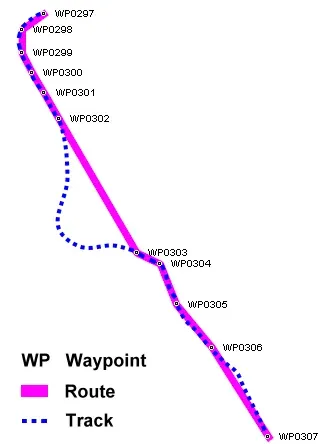
wptType, a waypoint: a single point with WGS 84 (GPS) coordinates and optional descriptive information. Waypoints in a collection have no order.rteType, a route: an ordered list of route points (waypoints at significant turns or stages) leading to a destination.trkType, a track: an ordered list of points describing a path that was actually travelled. A track has at least one segment, and each track segment holds track points that are connected in order. When GPS reception was lost or the receiver was turned off, start a new segment for each continuous stretch of data.
The difference between a planned route and a recorded track is easy to see on a map:
A minimal GPX file with one waypoint:
<gpx xmlns="http://www.topografix.com/GPX/1/1" xmlns:xsi="http://www.w3.org/2001/XMLSchema-instance" xsi:schemaLocation="http://www.topografix.com/GPX/1/1 http://www.topografix.com/GPX/1/1/gpx.xsd" version="1.1" creator="YourCompanyName"> <wpt lat="Your latitude" lon="Your longitude"> <time>Your Time</time> <name>Your Location name.</name> </wpt></gpx>Reuse a @FetchRequest as an extension
In SwiftUI, @FetchRequest loads Core Data objects into a view. Written inline, the entity, predicate and sort order are repeated in every view that needs the same data:
@FetchRequest( entity: TodoItem.entity(), sortDescriptors: [NSSortDescriptor(key: "dueDate", ascending: true)], predicate: NSPredicate(format: "dueDate < %@", Date.nextWeek() as CVarArg)) var tasksDueSoon: FetchedResults<TodoItem>Move the request into an extension on the entity, and each view only refers to it by name. Date.nextWeek() is a helper you define yourself; it is not part of Foundation.
// A convenient extension to set up the fetch requestextension TodoItem {  static var dueSoonFetchRequest: NSFetchRequest<TodoItem> {    let request: NSFetchRequest<TodoItem> = TodoItem.fetchRequest()    request.predicate = NSPredicate(format: "dueDate < %@", Date.nextWeek() as CVarArg)    request.sortDescriptors = [NSSortDescriptor(key: "dueDate", ascending: true)]
    return request  }}
// In your view@FetchRequest(fetchRequest: TodoItem.dueSoonFetchRequest)var tasksDueSoon: FetchedResults<TodoItem>
Fix “must have a valid NSEntityDescription”
This Core Data error means that the entities of the data model were not loaded when a fetch request ran. Check two things.
First, the name you pass to NSPersistentContainer must match the name of the .xcdatamodeld file.
Second, the persistence controller must be created before any view uses it, and its context must be passed into the SwiftUI environment. The highlighted lines do this in the app struct:
import SwiftUI
@mainstruct TestCoreDataApp: App {    let persistenceController = PersistenceController.shared
    var body: some Scene {        WindowGroup {            ContentView()                .environment(\.managedObjectContext, persistenceController.container.viewContext)        }    }}